Table of Contents
Chapter 4: Working with Layouts, Pages and Banks
Layouts
MD File types
Complete MD layouts use the file extension .mididesigner
Individual layout pages when exported use the file extension .mididesignerpage
Saving Layouts
MD does NOT automatically save files. You must save the file to retain any edits.
iPad & iPhone MORE / ACTIONS / SAVE LAYOUT . This will place the file in the MIDI Designer folder on the device.
Mac On the Mac menu bar, select FILE / SAVE LAYOUT. This allows saving files in any desired directory.
Temporary layout data is stored in the backup.mididesigner and autosave.mididesigner files. Do Not rely on these in place of frequently saving your layout. If you accidentally overwrite some critical work, make copies of these files, then open the copies to see if the missing work was captured. Also see Automatic Cloud Backup IAP
Downloading Layouts
When downloading layouts from the Q&A site:
- iPad & iPhone - save to the MIDI Designer folder
- Mac - save in desired user folder
Opening Layouts
1. Use the menu within the app
- iPad & iPhone MORE / CONFIG / ACTIONS / LOAD LAYOUT
- Mac FILE / OPEN…
2. Click on a .mididesigner file in the Mac Finder or iPad & iPhone Files.
3. Click on a .mididesigner file in Mail, Safari, Dropbox and many other apps.
Append Layout
When opening layouts, the Append Layout prompt appears.
- Yes will combine the current layout with the selected layout.
- No will replace the current layout with the selected layout.
- Cancel returns to the existing layout.
Create New Layout
New will remove all Page Banks (and therefore, Pages and Controls) and provide a blank slate, with an option to create default controls. On the iPad, you will have options for layout size and orientation.
- iPad & iPhone MORE / CONFIG / ACTIONS / NEW
- Mac FILE / NEW LAYOUT
Mail and Delete
Mail and Delete options are left overs from the iOS sandbox era. These still function, but you can also access the files in the MIDI Designer folder (iOS) or using the Finder (Mac).
Additional Mac File Notes
Working with Pages in Design Mode
Access Page Properties Pane
The Page Properties Pane is used to adjust Page Properties, and perform actions on pages and controls.
- iPhone: Enter design mode → single tap on page name
- iPad: Enter Design Mode → double tap on page tab
Access Page Actions Tab
Use the Page Actions Tab to add, delete move pages and other actions. Access Page Actions from the Page Properties Pane → Page Actions Tab
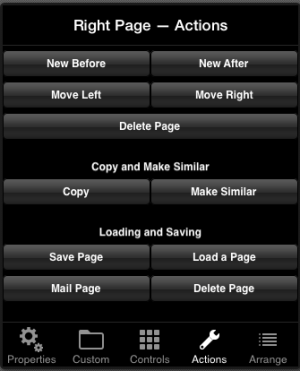
- Add a Page: from Page Actions Tab, use “New Before” or “New After”
- Move Page: From Page Actions Tab, use “Move Left” or “Move Right” to move the page
- Delete a Page: from Page Actions Tab, use “Delete Page” (there are two: use the top one)
- Copy and Make Similar refer are described below
Page Arranger
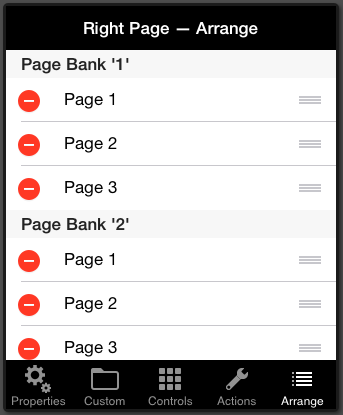
- Also, you may use the Page Arranger: Page Properties Pane → Arrange
- The Page Arranger also allows for moving pages between banks, deleting and renaming pages.
iPad & Mac
You can drag the page tab and drop in desired location
Copying Pages
There are three ways to make copies of pages.
- Copy Page — this creates a copy of the page using control copies, which are linked to the controls on the copied page.
- Page Make Similar — this creates a copy of the page with independent controls. Initially, the new page's controls have the same relationships as the controls on the copied page.
- Save a page as a file, and then load the file: Controls are completely independent. Inter-control relationships on the page are maintained, but relationships to other controls in the layout are broken.
Page Properties Pane
Page Properties change the visual properties of the given page.
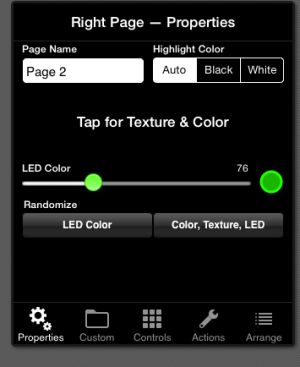
Access Page Properties from Page Properties Pane → Properties (first tab)
Page Name
Change the name of the page displayed on the top tab.
Highlight Color
- Highlight Color is the text color used by controls. It's also the text color the Page Tab (iPad only).
- Individual controls can specify their own highlight color
- Change the highlight color between black white and auto. When auto is selected MIDI designer will automatically change it depending on the background color of the page.
Tap for Texture and Color
The textures and colors change the page's texture and color. Hitting random texture or random color randomly changes texture or color. the background.
LED color slider
- LED color slider changes the hue for the LED for all controls on a page. If set, individual Control's LED Properties will not be affected by the pages' LED Color Slider.
- Use Randomize LED Color to change the LED color randomly
Randomize: Texture/Color/LED
Change the page background and the page-wide LED randomly.
Working with Pages as Files
You can save individual pages as files. This allows copying a page from one layout to another layout.
Pages use the file extension .mididesignerpage
Save Page
Page Properties Pane → Actions → Save Page allows you to save the current page with a name.
- iPad & iPhone - page file is placed in the MIDI Designer folder
- Mac - file save interface allows saving anywhere in file system
Load Page
1. Page Properties Pane → Actions → Load Page
2. Click on a .mididesignerpage file in the Mac Finder or iPad & iPhone Files
3. Click on a .mididesignerpage file in Mail, Safari, Dropbox and many other apps.
Mail and Delete
Mail and Delete options are left overs from the iOS sandbox era. These still function, but you can also access the files in the MIDI Designer folder (iOS) or using the Finder (Mac).
Working with Page Banks in Performance Mode
Access Page Bank Indicator(s)
iPad: the right and left sides each have a Page Bank Indicator 
iPhone: the Page Bank Indicator is on the Bottom Toolbar, to the right of the Page Name Display 
Switching Banks
- Touch the Page Bank Indicator to step through the banks sequentially.
- Alternately, you can use bank jump buttons
- you will not be able to see the page bank indicator in Performance Mode:
- iPad: if the left side has one visible bank and the right side has one or two visible banks
- iPhone: if there is only one visible bank
Working with Page Banks in Design Mode
Change number of visible banks
Press and hold on the banks indicator to the left of the more buttons to see the Bank Quantity Select Popover. Select any number from 1 to 8.
Move Pages Between Banks
- Use the Page Arranger (from Page Actions, hit the “Arrange” tab).
- On iPad, you can also drag the Page Tab to move a page from one bank to another.
Also see One Big Page