Table of Contents
Chapter 11: Advanced Control Concepts
Snap to Default Value
Control Properties Pane → Advanced → Snap to Default Value Snap to Default Value allows you to set a control to “snap” to its default value over time. You specify an amount of time for the value change to happen.
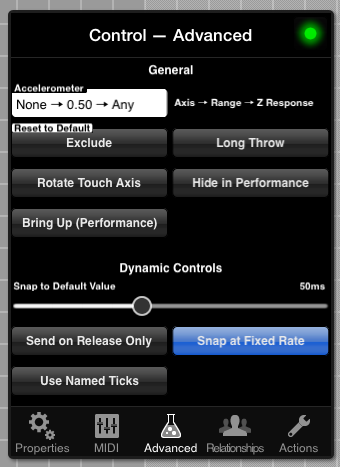
Values for Snap to Default Value Slider
Off, 0ms, 10ms, 25ms, 50ms, 75ms, 100ms, 500ms, 2s, 4s, 8s, 16s
ms — stands for milliseconds, of which there are one thousand in every second. So 100ms is one tenth of a second.
s — stands for seconds.
Snap at Fixed Speed
By way of example, with Snap to Default Value slider set to 4 seconds:
- With Snap at Fixed Speed OFF, the control would take 4 seconds to reach its default value. If the starting value is very close, the movement will be very slow. If the starting value is very far, the movement will be quicker.
- With Snap at Fixed Speed ON, the control would take 4 seconds to run through its MIDI range. Smaller distances take less time, since the movement is always at the same speed.
Accelerometer
The accelerometer in your iOS device measures tilt in three dimensions: X, Y and Z. The Accelerometer control in MD allows you to tie any number of controls to a dimension of accelerometer produced data.
In Play Mode, you can also turn the accelerometer ON and OFF, both from a standard control and from a button or buttons in your layout.
Settings It Up (Design Mode)
Control Properties Pane → Advanced → Accelerometer
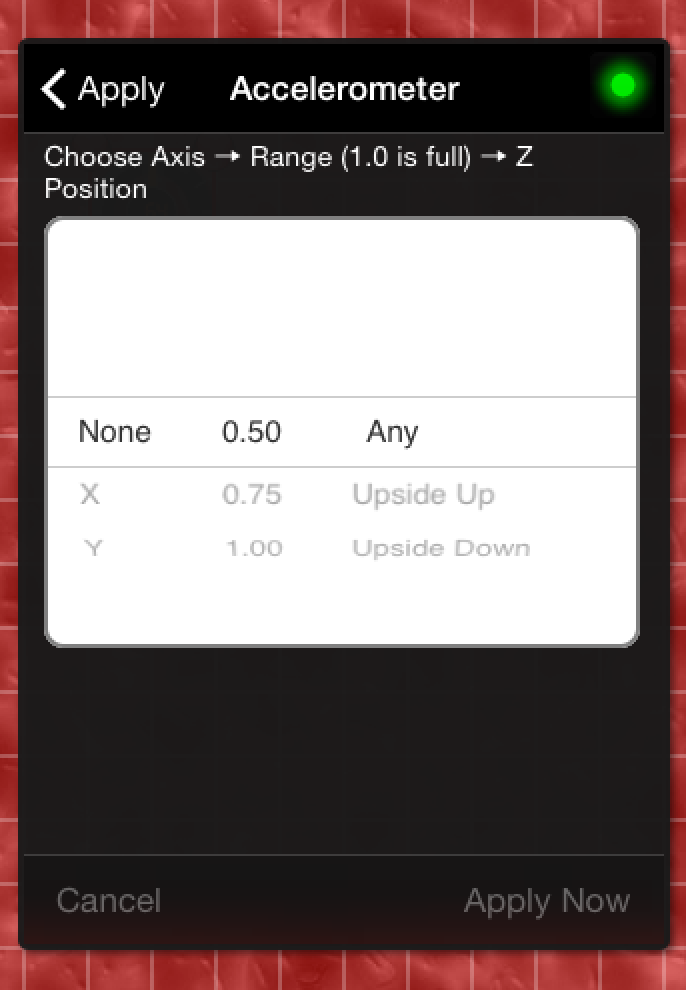
The Accelerometer Picker allows you to choose which dimension, X or Y, the control responds to:
- X: right or left.
- Y: up or down.
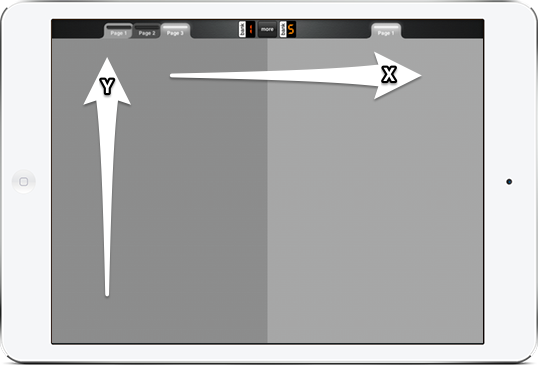
In addition, you can choose the following:
Range — Choose how much movement is required to move the control through its MIDI range:
- 0.50: Move the device 90 degrees on the specified dimension to run from MIN to MAX.
- 0.75: Move the device 120 degrees on the specified dimension to run from MIN to MAX.
- 1.00: Move the device 180 degrees on the specified dimension to run from MIN to MAX.
Z Position – It's very hard to control parameters on the Z-dimension, so MD uses Z-position instead. There are three choices for Z-position which determine when the control responds to the accelerometer:
- Any — the control will respond whether the device is upside up or upside down.
- Upside Up — the control will respond only when the device is facing up. In general, this means you can see the screen.
- Upside Down — the control will respond only when the device is facing down. In general, this means the control is responding when you cannot see the device's screen.
The Z-Position allows you to assign the accelerometer to different knobs depending on whether the device is upside up or upside down. This gives you great flexibility to design an instrument that responds to XY and has two different “sides.”
Turning Accelerometer Off and On via Global Options
The global Accelo button (toggle) on iPhone (5) is a great way to turn the accelerometer for MD ON or OFF.
The global Accelo button (toggle) on iPad (5) is a great way to turn the accelerometer for MD ON or OFF.
Turning Accelerometer Off and On via Accelerometer Type Buttons
Control Properties Pane → Properties → Subtype
Create a button with subtype “Accelerometer Toggle.” In Play Mode, when the button is ON, the accelerometer is enabled.
The MD accelerometer implementation is quite famous: see it here on the cover of apple.com!
http://mididesigner.com/qa/2979/accelerometer-how-does-it-work
Bank & Page Jump Buttons
Control Properties Pane → Properties → Subtype — Buttons Only
There are six relevant subtypes for buttons:
- Page Up
- Page Down
- Bank Up
- Bank Down
- Jump to Page
- Jump to Bank
Jump to Page
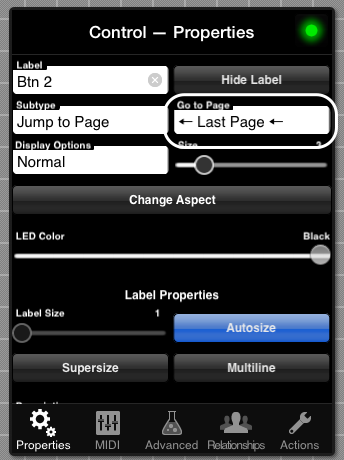
There are two options for Jump to Page:
- ← Last Page ← — this will jump to the previous page that was shown for the current bank
- A specific page — if necessary, MD will switch the bank to access the page chosen
If you choose a specific page, you will be prompted to automatically label your button with the name of the selected page.
Jump to Bank
The Go to Bank field appears in the same place as Go to Page above. There is no “Last Bank” option: you must choose a specific bank to jump to.
Send On Only (Toggle)
Control Properties Pane → Advanced → Send On Only (Toggle) — Buttons Only
When this toggle is ON for selected control, only the MIDI ON value is sent. Otherwise, both are send.
Note: the ON value is sent even if it is lower or the same as the MIDI OFF value.
High-Precision Sliders, Knobs and Crossfaders
Getting a slider, crossfader or knob to hit a specific value can be difficult, especially if:
- The control is not very large on the axis of movement
- There are many values (esp. for 14-bit controls)
To a certain extent, the problem may be alleviated using:
- Using Long Throw for higher precision
- Using up and down steppers
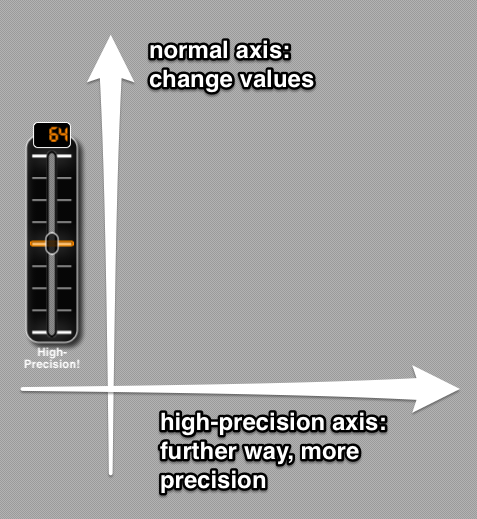
High-Precision Controls provide yet another solution to this issue. High-precision controls work as follows:
- Along the axis of movement, your touch works as normal: to change the value of the control.
- Along the perpendicular axis, the further away from the control you move, the fewer values are changed
Global Option for High-Precision
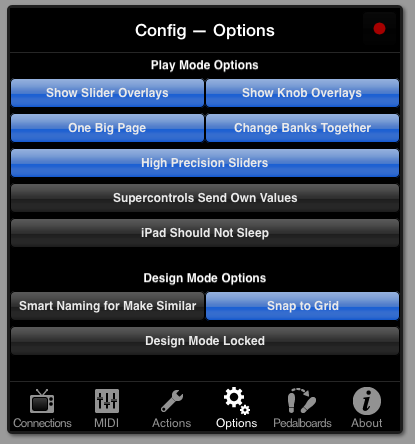
Config Pane → Options → High-Precision Sliders (Toggle)
If this option is ON, all sliders, knobs, and crossfaders are high-precision. If this option is OFF, only controls
that have the option set specifically are high-precision.
Per-Control Option for High-Precision
Control Properties Pane → Advanced → Force High-Precision (Toggle)

- If the Global Option is ON, this has no effect
- If the Global Option is OFF, this option – if set to ON – will cause the selected control to respond on the high-precision axis.
Batch Sends: Reset to Default, Send All
It is possible to send the values of all controls in a layout at once, and also to reset all controls to their default values.
Reset to Default and Send All from Config
Config Pane → MIDI → MIDI Actions
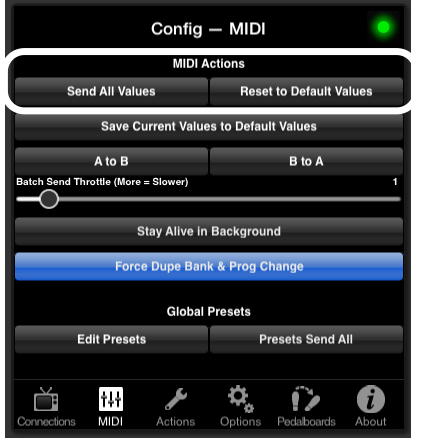
Send All Values — Sends the value for all controls in a layout.
Reset to Default Values — Resets all controls in a layout to their default values.
If current values are different, the new value is sent out.
Reset to Default and Send All from Buttons
Control Properties Pane → Properties Tab → Subtype — Buttons Only
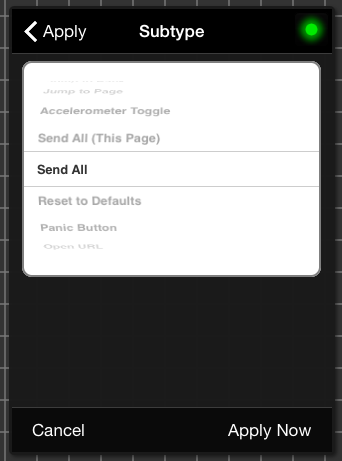
There are three batch-sending options for buttons:
- Send All (This Page) — Sends the values for all controls on the page where the selected button is located.
- Send All — Send values for all controls in the layout
- Reset to Default — Resets all controls in the layout to their default values
Batch sends send the values of all controls, with these notable exceptions:
- Supercontrols (unless Supercontrols Send Own Values is selected)
- Controls that have Reset to Default: Exclude set to ON
Reset to Default: Exclude (Toggle)
Control Properties Pane → Advanced → Reset to Default, Exclude (Toggle)
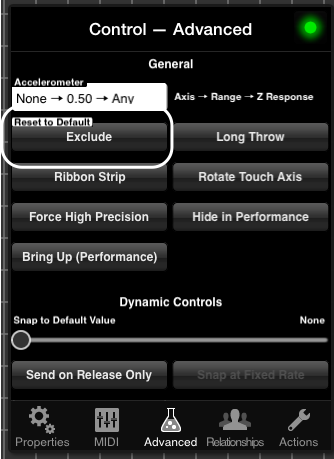
When ON, the selected control is excluded from batch sends, including:
- Send All — Layout-Wide
- Reset to Default Values — Layout-Wide
- Send All (Page)
- Global Presets