
MIDI Designer Reference Manual
Sidebar
Table of Contents
Chapter 3: MIDI Connections
updated Dec 2023 for MD 3.0
MIDI Connection Types
In early days of MIDI, there was one connection - wired five pin DIN, with one cable for input, one for output.
Current specs define
- DIN MiDI (hardwired, traditional five PIN DIN plus 2.5mm and 3.5mm TRS connections in three flavors, A, B, and TS)
- USB,
- Bluetooth,
- Firewire, and
- Network (labeled WiFi in MD, also called RTP)
There are also “virtual” MIDI, connections internal to a computer between separate applications.
There are adaptors that convert between interface, such as DIN-MIDI to Bluetooth dongles, USB to DIN-MIDI adapter, and studio boxes that provide multiple interfaces.
Apple's CoreMIDI means that MIDI is essentially a native language of iOS & MacOS. CoreMIDI does most of the connection work, Once configuration is correct, the connection (mostly) works. In earlier days of iOS, helper apps were necessary. There is still a role for helper apps to manage complicated configurations and automate some connections.
“On Mac OSX and iOS, Apple's CoreMIDI technology automatically handles the transfer of MIDI data between software apps (sequencers, softsynths, etc.) and external MIDI devices connected via USB (USB-MIDI), FireWire (1394-MIDI) and on a network (RTP-MIDI)” - midi.org
MIDI Designer Connections Menu
MIDI connection control is found at MORE / Configuration / Connections. This provides selection of
- WiFi (Network)
- BlueTooth (includes connect and enable connections controls)
- MIDI Designer initiated Virtual MIDI in / out
- Hardware and Virtual sources / destinations
The menu shows all available connections. Highlighted and checked entries are active. Tap to enable / disable selected connection.
For inputs, Thru option will echo MIDI input to all connected outputs.
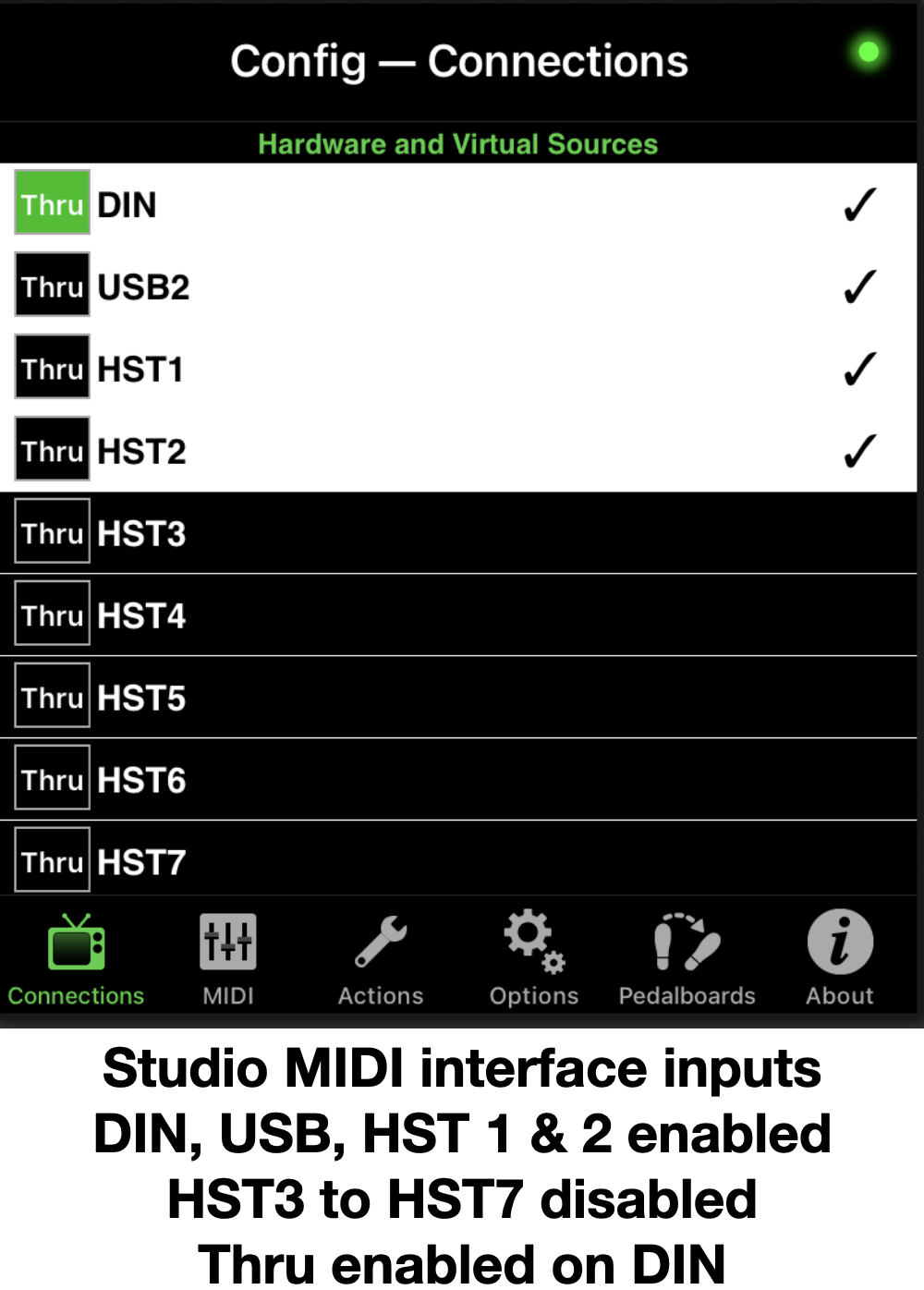
USB (Hardware) Connection
Hardware connections are implemented via USB cable (Lightning for older i-devices). Options for the connection include
- hardware (synth, drum machine, etc.), often via USB type B at hardware end
- five pin DIN midi adapter to connect to DIN MIDI network
- Audio / MIDI interface, proving multiple MIDI channels
- USB Hub, connecting to multiple MIDI devices
- Other devices, such as control surfaces, mixers, lighting controllers, etc.
While CoreMIDI should make most connections painless, there are occational exceptions
- USB devices may require an OTG type cable.
- Lightning devices may require the Apple Camera Kit, or similar USB adapter.
If a device is not labeled USB “Class Compliant,” plug it in and try anyway. Some manufacturers, such as Roland, provide USB MIDI capability while not providing full class compliance (in Roland's case, in favor of their proprietary USB drivers).
USB between Mac and iPad / iPhone
When connecting via cable from an iPad /iPhone to the Mac, the iPad / iPhone must first be enabled on the Mac in the Audio Devices window of Audio/MIDI Setup before the MIDI connections are available

Bluetooth
Bluetooth MIDI connections are configured with the same two-step routine you follow for other BT connections (audio, keyboards, etc.), with one difference. At the MD end of the connection, use MD Connections menu, not the device system BT menu.
- Enable pairing on first device
- Confirm connection on second device
With smart devices, you can initiate the connection at either end.
For MIDI dongles or hardware devices with limited display, put the device in BT pairing mode, then complete the connection in MD.
Once connected with BT, connections typically reconnect when the device is available.

Note: Bluetooth MIDI connections cannot be initiated from the OS Bluetooth menu, but one active will appear in that menu.
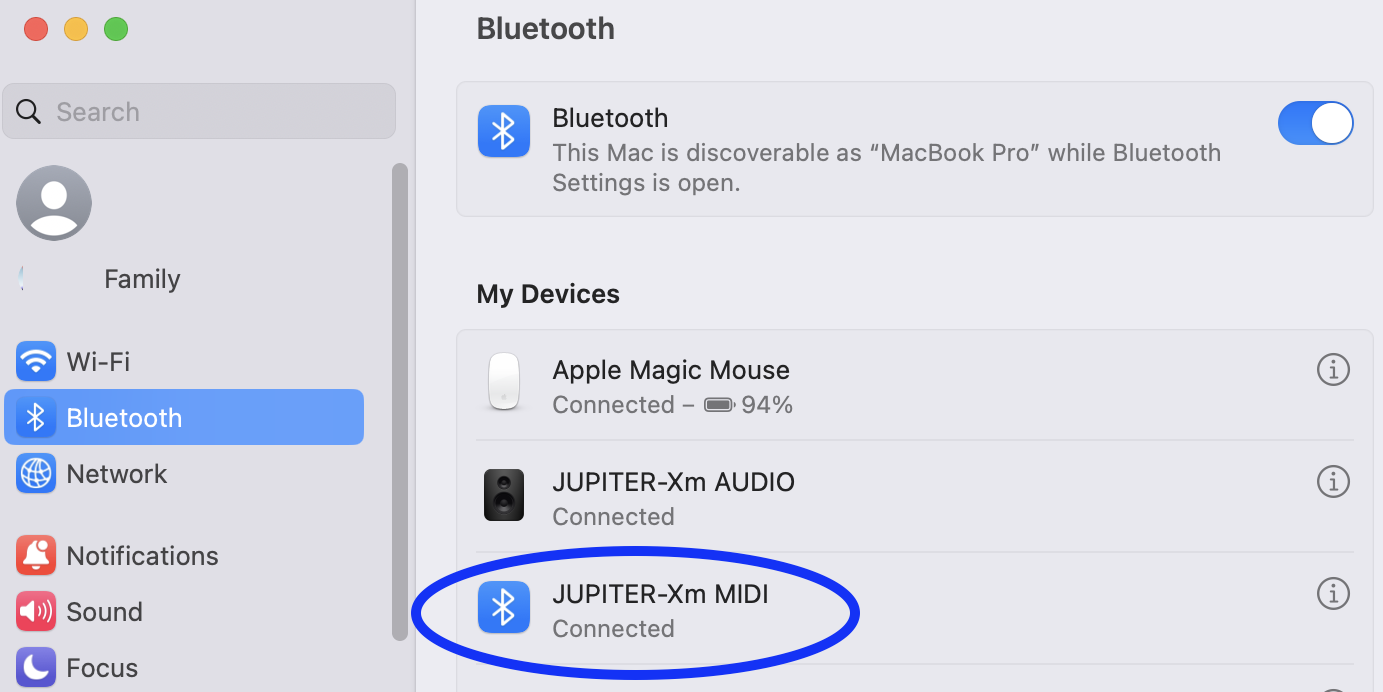
Virtual MIDI (Inter App Connections)
“Virtual” connections provide MIDI between applications internal to a computer. The connections can be initiated by the programs exchanging MIDI, a separate MIDI routing program, or by the OS.
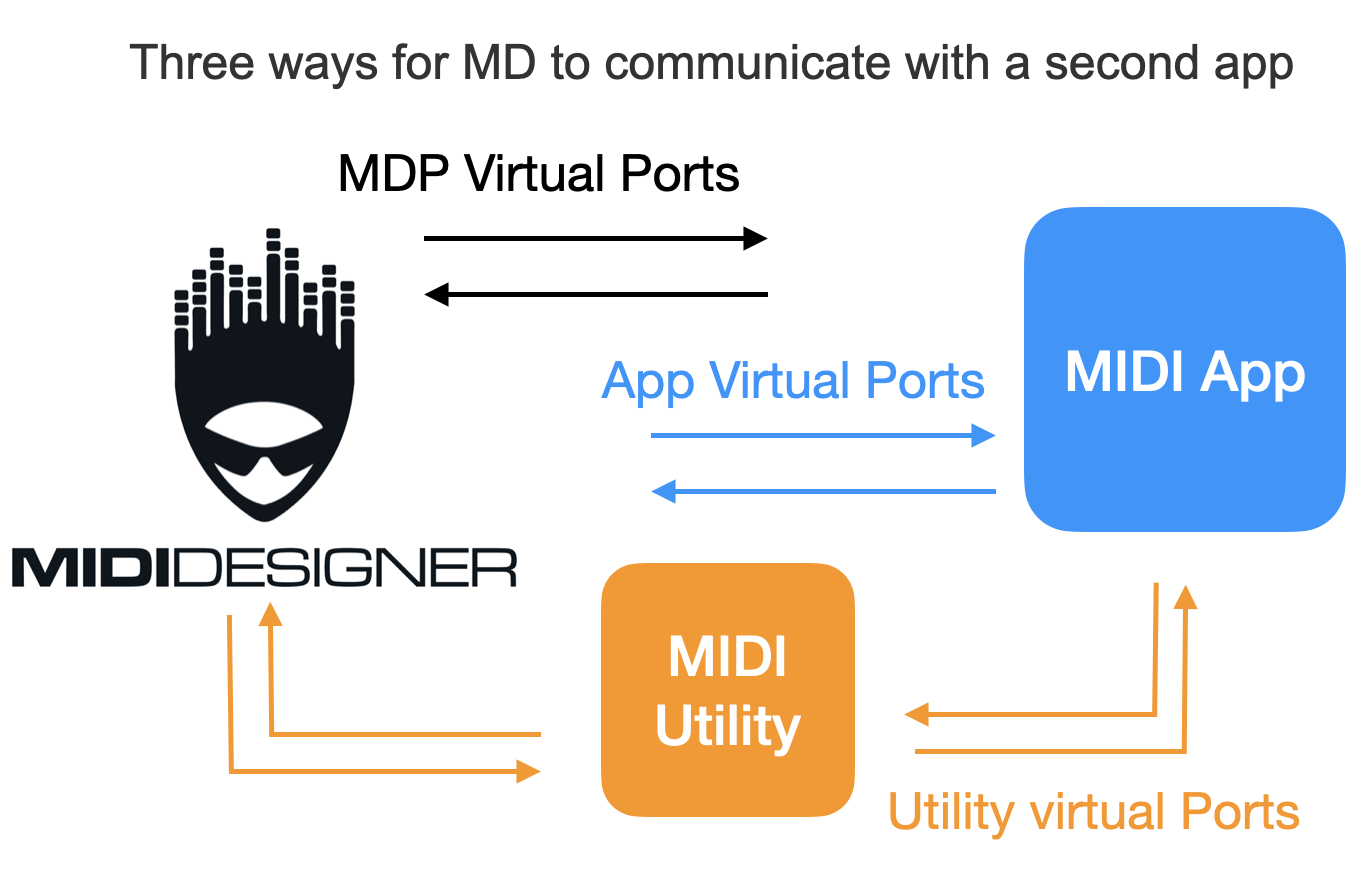
MD virtual ports should be preferred, as MD keep alive functionality should keep these ports active when the app is in background. There may be cases where this is not possible, such as an app that only recognizes its own ports, or more flexibility in routing is desired. If virtual connections are being dropped, shift back to MD virtual ports.
Do not enable more than one path between two apps to prevent message duplication.
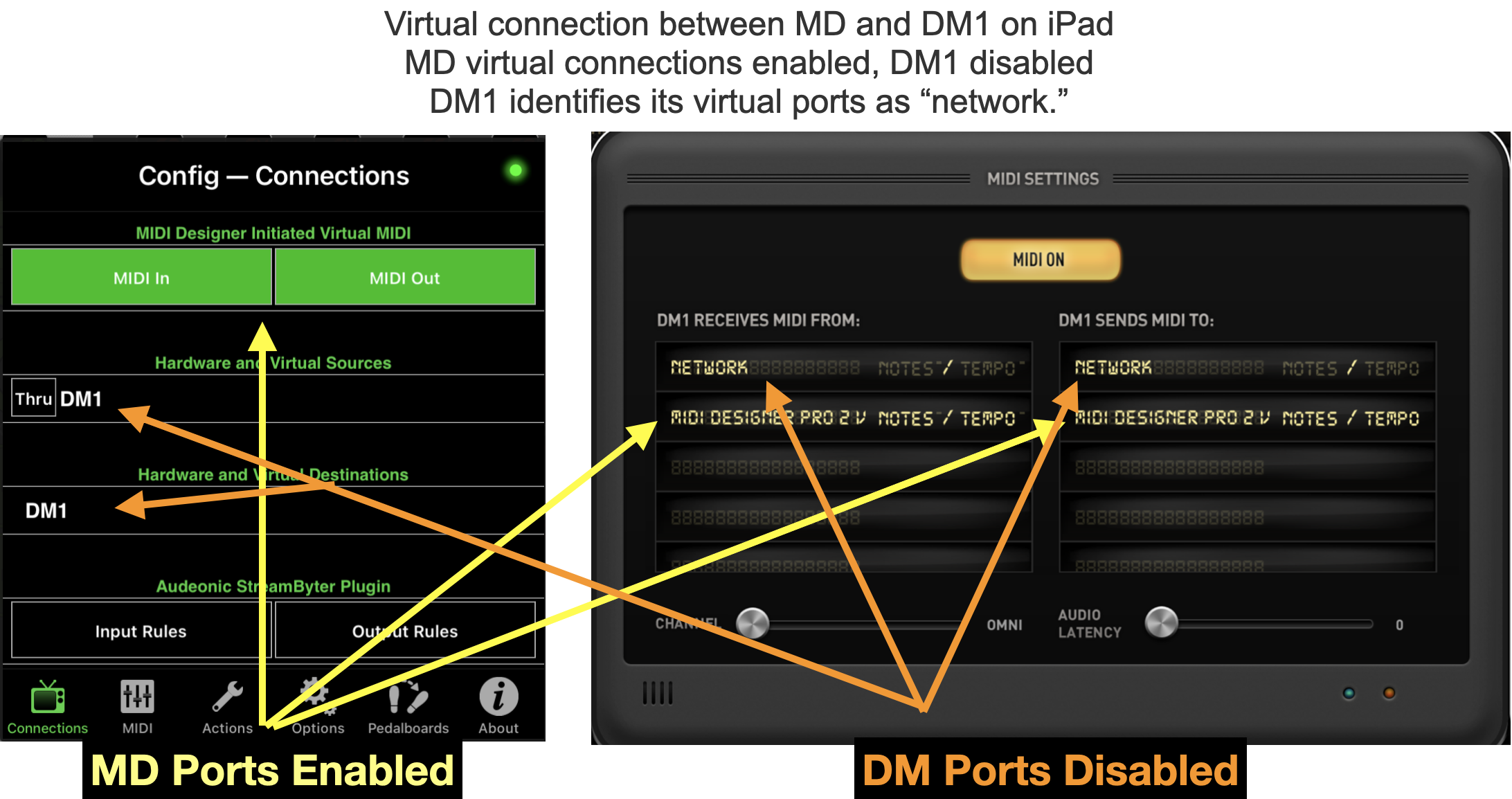
Apps may have different titles for their virtual connections. DM1 (above) uses generic “Network.” In MD, we see it labeled DM1.
Mac - IAC Driver
MacOS also contains a virtual MIDI connection capability - IAC Driver (for inter - application communication). This is configured in Audio-MIDI Setup. Apple directions
If you find yourself needing this, a routing helper program may be a simpler solution.
WiFi (Network) MIDI
These instructions focus on iPhone, iPad and Mac. If you have another Wi-Fi MIDI device, we would appreciate feedback to update these instructions.
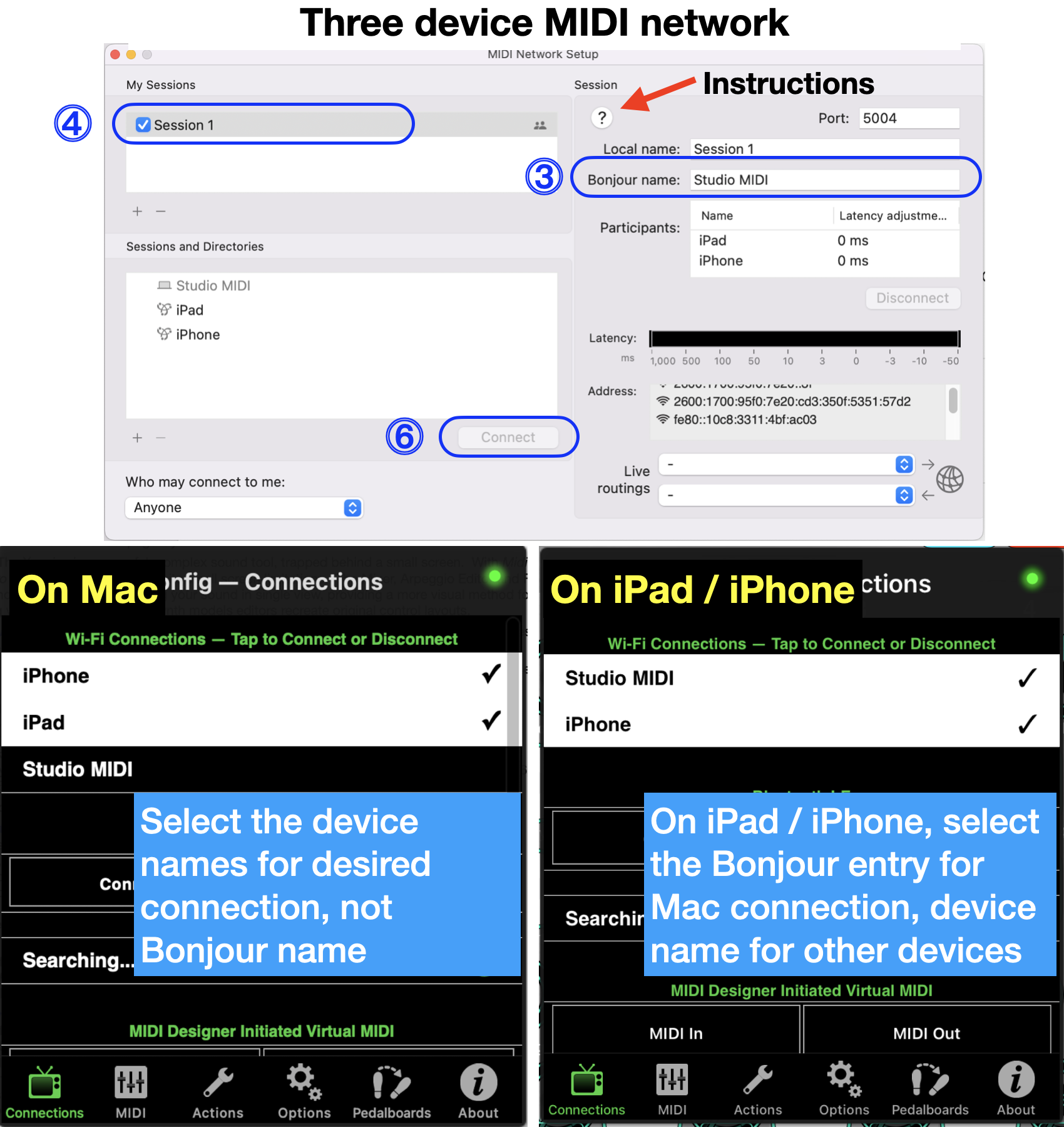
Configure Network
The MIDI Network must be configured on a Mac - does not need to be Apple silicon processor, just access to Audio MIDI setup.
- Open Audio-MIDI Setup
- Under MIDI Studio, open MIDI Network Setup (or click the globe icon)
- In Bonjour Name, enter a unique name for the MIDI network, do NOT repeat the name of a device on the network
- Click the box to activate Network Session 1
- Open MIDI Designer (or another network MIDI-enabled app) on devices to be added to network
- Devices should appear in the Sessions and Directories box
- Select desired device, click CONNECT
- Device should now appear in Participants list
- Repeat for other desired devices
Configure Participants
In MD Connections panel, you should now see the devices available on the MIDI network.
Initiating Mac
In MD on the Mac initiating the network, the connections panel will show remote devices available, plus the Bonjour name of the network. Ignore the Bonjour entry, click on a remote participant to connect. Between MD devices, you only have to connect at one end - the other will automatically highlight.
Devices other than the initiating Mac
The initiating Mac will not appear, instead select the Bonjour entry to connect to that Mac. Connect to other participants as above.
Apple reference for Network MIDI configuration, or press ? in the MIDI Network Setup window.
Network Notes
- Once the network MIDI session is established
- Devices can join and depart without having to connect on Audio-MIDI Setup
- The initiating Mac can be shut down without impact.
- Once stable, it seems as solid as BT connections, but it can make you crazy trying to get it initially established
- The WIFI connections panel may show an entry for the current device (self). If this is selected, then you are echoing MIDI data back to that instance of MD, a MIDI feedback loop. In most cases, this is not an issue, but occasional setups could have a problem. I don't have a reliable way to replicate this “self” entry.
- Theory - as long as a single device retains knowledge of the MIDI network, it remains available, and you do not have to restart the network on the Mac. I have powered down all devices, restarted, and reconnected just by tapping the device names in the WIFI Connections box. At some point, the network is lost, and you have to start at the beginning. iDevices are more robust than Macs at retaining the network.
- Network MIDI does not have separate options for input and output, joining a network enables both channels
- Network MIDI does not have Thru option (unneeded, since you can connect directly to any device on the network, not like DIN MIDI days where you would have a serial string)
Network Troubleshooting
If the MIDI network just will not connect
- Sometimes just giving it some time after making selections will enable the connections
- In Audio-MIDI Setup disconnect devices in the Participants box, then reconnect in the Sessions and Directories box
- In Audio-MIDI Setup rebuild the Bonjour session
- Disconnect all devices
- Unselect the network session
- Reconfigure the Bonjour session
- If that doesn't work, try closing all apps and rebooting all devices
Learn more about Network MIDI.
Network MIDI feels like the early days of Bluetooth. Cranky, delays, likes to drop connections at random times, sometimes data shows up seconds late in one big chunk. But you can eventually get a stable connection that persists through device power cycles.
Connecting to Windows
Our condolences.
Instructions on getting connected to Windows with MIDI Designer
For Windows, you'll need rtpMIDI generously provided by Tobias Erichsen.
Please donate to this project if you use it! Tobias Erichsen's work is not only critical to your use of MD; it's also brilliant!
Connection Troubleshooting
If MD Connections menu shows a connection, but the target is not responding, use the MD log to verify the inbound and outbound messages. A stand alone MIDI log can also help - are messages getting to the computer, but not to MD (see some logger program recommendations below).
Some thoughts:
- Configure the target device to transmit MIDI
- Move a control that transmits, or play a note
- Does MD log show a received message?
- If not, try a stand alone MIDI monitor program? Does it show a message received?
- Do you have another device in your rig that indicates successful transmission? Another sound module to sound a note? Etc?
If you are having connection difficulty with a specific target, we recommend starting with the target device forums or support to see if other users have a similar issue and have found a solution. MD MIDI connections have proven robust over more than a decade of maturation. With the large number of unique MIDI devices available, it is difficult for us to troubleshoot individual unique configurations.
If inter-app connections are dropping, ensure you are using the MD Virtual Connections.
Recommendations
Adaptors
Just a few of hundreds available
Yamaha MD-BT01 WIRELESS BLUETOOTH MIDI ADAPTER
IK Multimedia iRig MIDI 2 and others, USB to DIN MIDI
iConnectivity MIDI and combination Audio/MIDI interfaces, Audio 4c
CME WIDI Adaptor - Wireless DIN MIDI to BT
Quicco BT DIN MIDI - may be no longer available
Connectivity Helper Programs
This is just a sampling of some we have used. There are many other options.
Mathias Frick's midimittr - simplify MIDI connections
Audeonic's MIDI Fire, which provides several useful MIDI tools, including StreamByter, in addition to routing
Secret Base Design's Apollo MIDI over Bluetooth
Snoise MIDI Monitor - MacOS MIDI Log, a good SysE Librarian is also available
Protokol MIDI/OSC Monitor - free monitor for MIDI, OSC, and more

MusicIO
BluePort http://betafunk.dk/blueport
Line 6 MIDI Mobilizer 2
manual/03_connections_redux.txt · Last modified: by 127.0.0.1
Except where otherwise noted, content on this wiki is licensed under the following license: CC Attribution-Share Alike 4.0 International


