
MIDI Designer Reference Manual
Sidebar
Table of Contents
Chapter 15: Troubleshooting
Log Pane
The Log Pane can be very useful to determine what is happening in terms of MIDI messages.
The Log is opened from the More menu.
Log as of version 2.313 (with annotations - in color):
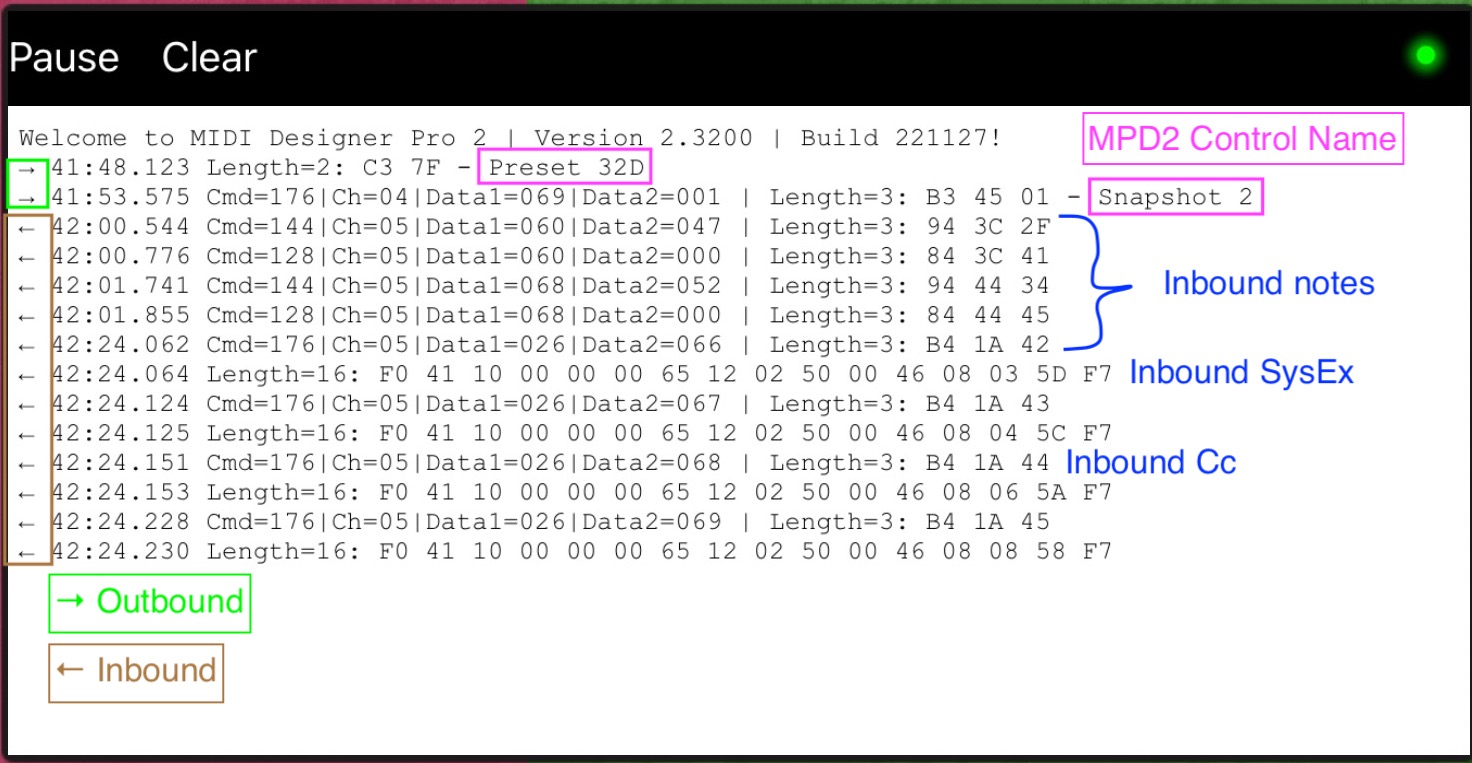
- When the Log Pane is open, all outgoing and incoming MIDI messages are logged. Otherwise they are discarded.
- If the Log Pane is paused – Pause Button (Toggle) is ON – messages are discarded.
- You may clear all data in the log by using the Clear button.
The log was enhanced in version 2.313. Data shown:
- Arrows for outbound (right) or inbound (left) data
- Time in minutes, seconds, and fractions
- Data - three byte messages show the command, channel, and two data bytes
- Outbound messages - the originating control label
On initial load, it will show the MDP2 version and build numbers.
The log will also show when StreamByter input and output rules load successfully.
You can select and copy data in the log to paste in to other apps, including Mail.
External Logging
On occasion, an external log may help in troubleshooting. Two useful free (currently) MIDI log tools are:
- Protokol (iPadOS) - hexler.net
- MIDI Monitor (MacOS) - snoise.com
Metadata
In the More → Config → Actions menu, there is an option to mail Meta data.
This option creates a draft e-mail with three spreadsheet files (.csv format)
- Layout info (shows the data for layouts controls, such as Label, Type, Subtype, Supercontrols, Subcontrols, etc.)
- Unused Control Changes
- Unused Notes
These files can help troubleshooting large layouts.
The files can be accessed by e-mailing them to yourself, or by saving the draft e-mail, then accessing them from the drafts folder of you e-mail client.
As of 2.320, the layout info file does not include SysEx control data.
Scrambled Controls
In the early days, things were easy with a single display aspect ratio iPad. As larger aspect ratios appeared, we have allowed “native” aspect ratio layouts. The downside of this is when a layout created in a larger aspect ratio is loaded on a smaller display, controls that do not have room in the different aspect will stack up to the top right.
All the controls are still present, they need to be manually rearranged to conform to the actual display aspect. Go to design mode and rearrange the stacked controls.
When Things Are Not Working
Check Version Number
Ensure you are on the most recent version of MIDI Designer. Check the App Store for update.
If you are using an older version of MIDI Designer, you may get an error message when loading a layout created with a more recent version of MIDI Designer.
Close and Reboot
May seem a cliché, but when strange things are happening, closing all apps and rebooting is a good first step and clears many issues. Please try this before reporting a problem.
iPad
Close all apps:
https://support.apple.com/en-us/HT212063
Restart iPad:
https://support.apple.com/guide/ipad/restart-ipad-ipad63d30b5a/ipados
iPhone
Mac
⌘ + Q on each app, select Restart… from “Apple” menu
Single Control
Very occasionally, we have seen meta data for a control might get scrambled. If a single control is misbehaving, and no other troubleshooting seems to correct it, try deleting the control and rebuilding it.
Corrupt Layout
On rare occasions, a layout might become corrupted. You may need to redownload from the Q&A site, or restore from a backup version. If you use the Dropbox backup IAP, see if the last version saved there is uncorrupted.
Local Storage
Loading layouts can be more reliable when the layouts are on local storage (vs Dropbox, iCloud, etc.), especially with marginal connectivity.
🆕 With more recent OS versions, we are seeing more robust performance with layouts loading directly from iCloud.
Remove Autosaves
If you get the error message: Problem Restoring, Rolling Back or an immediate crash when loading a layout, try removing autosave.mididesigner and backup.mididesigner. If this does not resolve the problem, then also remove config.xml.
iPHoneOsS / iPadOS
These files are located in the MIDI Designer folder
MacOS
These files are located in Users / your user name / Library / Containers / MIDI Designer / Data / Documents
Reinstall
If all else fails:
- * Copy all your layouts from the MIDI Designer folder to a new folder
- Delete the MIDI Designer app, including data
- Reinstall MIDI Designer
- * If desired, move desired layouts back into the MIDI Designer folder
* iPad / iPhone only - on the Mac, layouts are stored in your documents folders
Purchases (including subscriptions)
Purchasing
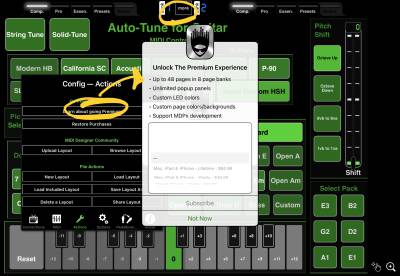
Look under More | Config | Actions - Learn about going premium. This will bring up subscription & purchase options.
Troubleshooting
We do not control purchases & subscriptions (mostly) - they are managed by Apple servers.
Look under More | Config | Actions . If you see a Restore Purchases option, select that option.
Some users have reported delays for purchases to appear on other devices. If your purchase does not appear after a “reasonable” time, here are some ideas from Apple support
Check your purchase in Settings > [Your Name] > Subscriptions and ensure the desired subscription is there. Steps 1 - 3 in Change your subscription from Apple.
If the purchase is there:
- Restart your device and look again.
- If it continues update the app and check again. How to manually update apps on your Apple device.
If the purchase is not there:
- Make sure you are signed into the correct Apple ID.
- Check your purchase history. See your purchase history for the App Store, iTunes Store, and more
- Check your payment method. Change, add, or remove Apple ID payment methods
Working off Network with Subscription
- MD will check on app start to verify subscription status. There is a grace period (~1.5 days), but the check always happens.
- The check never happens while the app is running, even if it’s backgrounded.
- If your sub expiry date is not in the past, no Internet is fine.
- If you are going to be off network - start the app while connected to the internet and keep it running.
- If you never force quit the app (and it doesn’t crash) you should be able to rock on indefinitely.
- You could also force a restart to force the check while connected to the internet.
Options for Getting Help
Options for getting help include:
The FB group and forums are best for getting more eyes on your question quickly and leveraging the community knowledge. We watch the group and forum. When these do not provide and answer, contact us directly from the app Config → Actions → Email Us or the Contact Form on the MD Website.
Short, Self-Contained, Correct Example
If you are asking a question to other users or to Tech Support, please try to create a short, self-contained, and correct example (if possible). This means:
- Short—Please try to “slim” your question. For example, if there are 40 buttons not related to your example, please remove them. If you can produce the problem with one slider, present that. The better you can locate the problem, the easier it is for people to help you.
- Self-Contained—Provide everything so that somebody else can also see the problem occur. You might need to include files, and even MIDI specs, but hopefully you can simplify the problem so that this isn't necessary. (Sometimes, other people might just need to have the same expensive synth you do to solve the problem. In that case, you cannot make the example self-contained)
- Correct—The example should be readable and everything that is not part of the problem should work. Other problems in your layout should be corrected or, better yet, removed.
- Example—Make sure you can see the problem clearly in the question and the resources provided. If you are asking others to download an MD layout which shows the problem, download it yourself to make sure the problem can be seen.
The easier it is to see your issue the faster you can get a solution. Please submit the minimum sample necessary to view the issue, with any extraneous controls removed.
manual/15_troubleshooting.txt · Last modified: by 127.0.0.1
Except where otherwise noted, content on this wiki is licensed under the following license: CC Attribution-Share Alike 4.0 International


